Home screen · updated 21 July 2026
Making the first screen feel like yours
The home screen is the first thing anyone sees after pressing power, and out of the box it is busy with suggestions. You cannot remove everything, but you can decide what sits in the top row and what drops out of sight.
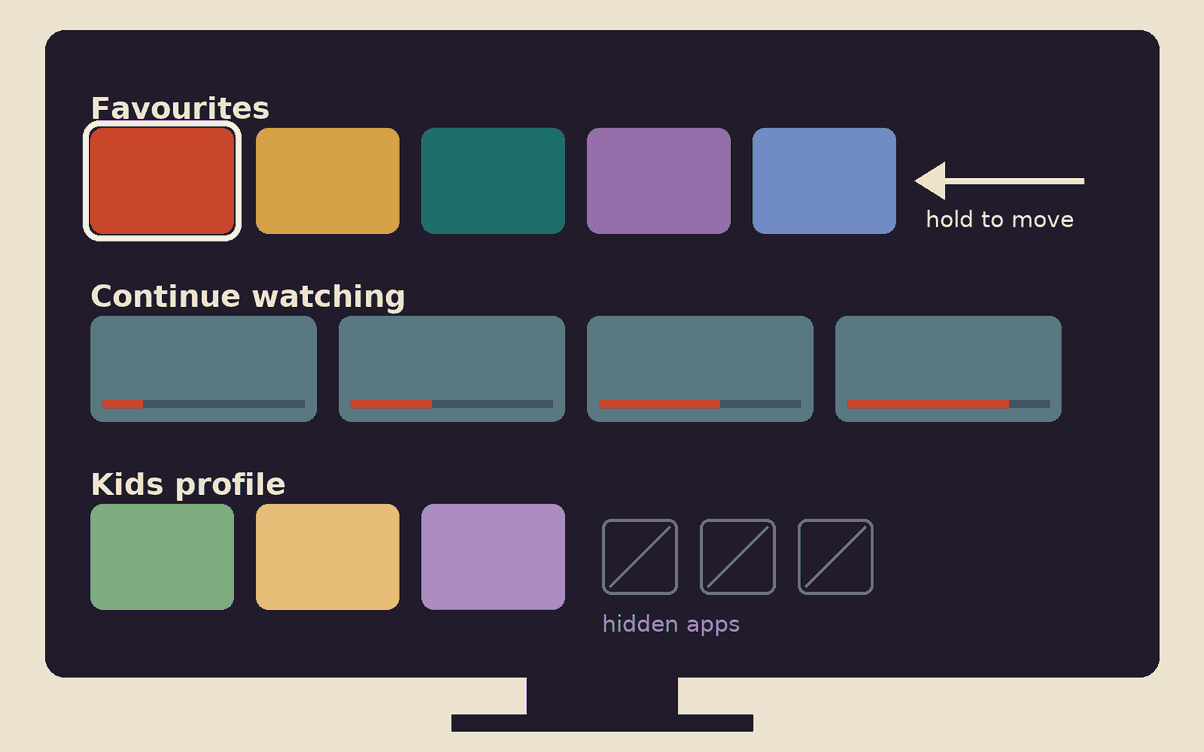
The favourites row
Keep the top row to six or seven apps. On most launchers you highlight an app, hold select and choose move; the order then stays put. Put the app people open first on the left, because that is where the highlight lands when the screen wakes.
Hiding what you never open
Pre-installed apps you never use can often be disabled in the apps section of settings. Disabling can be undone and frees a little storage and memory. If an app cannot be disabled, taking it out of the favourites row is the next best thing.
Quieter suggestions
Some launchers offer an apps-only mode that cuts down personal recommendations and puts installed apps first. It is plainer and, on a shared family set, calmer, though some promoted rows or banners may remain. Whether the mode exists depends on the device. Where it does not, individual suggestion rows can often be switched off in the home screen settings.
When nothing is playing
The screen saver deserves a minute. A slow photo album or a plain clock is kinder in the evening than a bright slideshow, and a short delay before the screen turns off saves power. On the bedroom set I use a dim clock and a twenty-minute sleep.
After a big system update, check the home screen again: rows sometimes come back in a different order.